Continue where you left off in SilverBullet
Add Appwrite sign in to a self-hosted SilverBullet notebook with a Space Lua script, and reopen the page you were reading on any device.
SilverBullet is a self-hosted, markdown-based notebook. You run one server and open it from every device you own. It scripts itself with Space Lua, code blocks that run in the browser with full access to the page, which is exactly what Auth UI needs. In this guide you load Auth UI from a Lua block, add an account button to the top bar, and make SilverBullet remember the page you were on so any other device opens it after sign in. No fork, no rebuild, no server code.
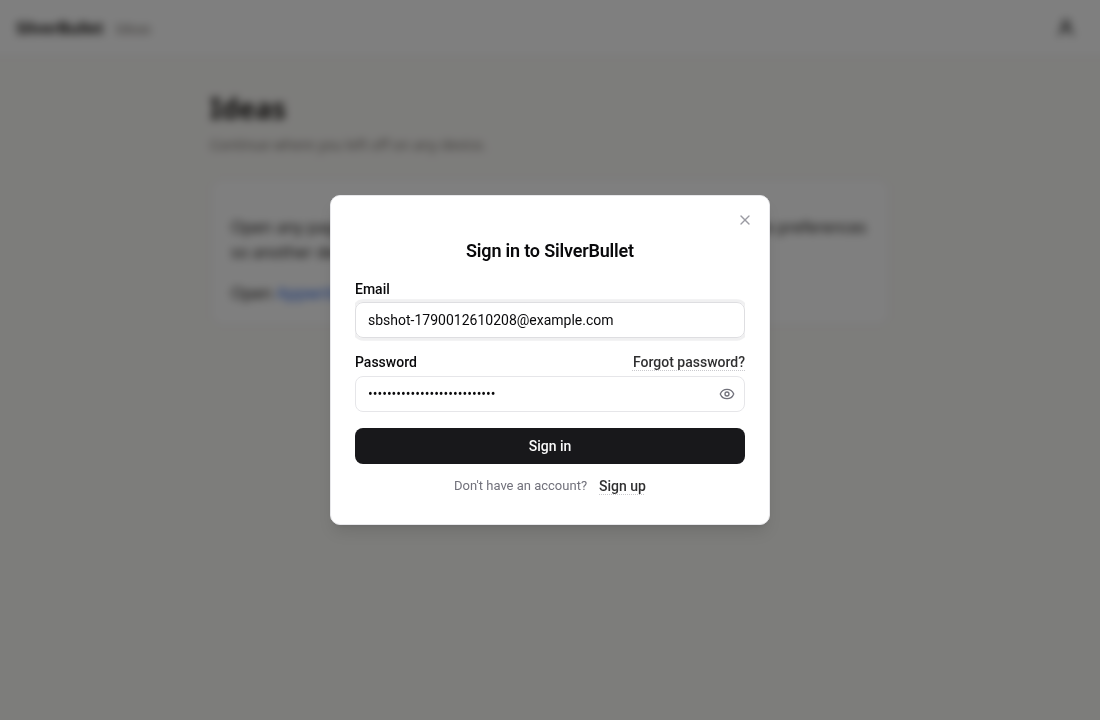
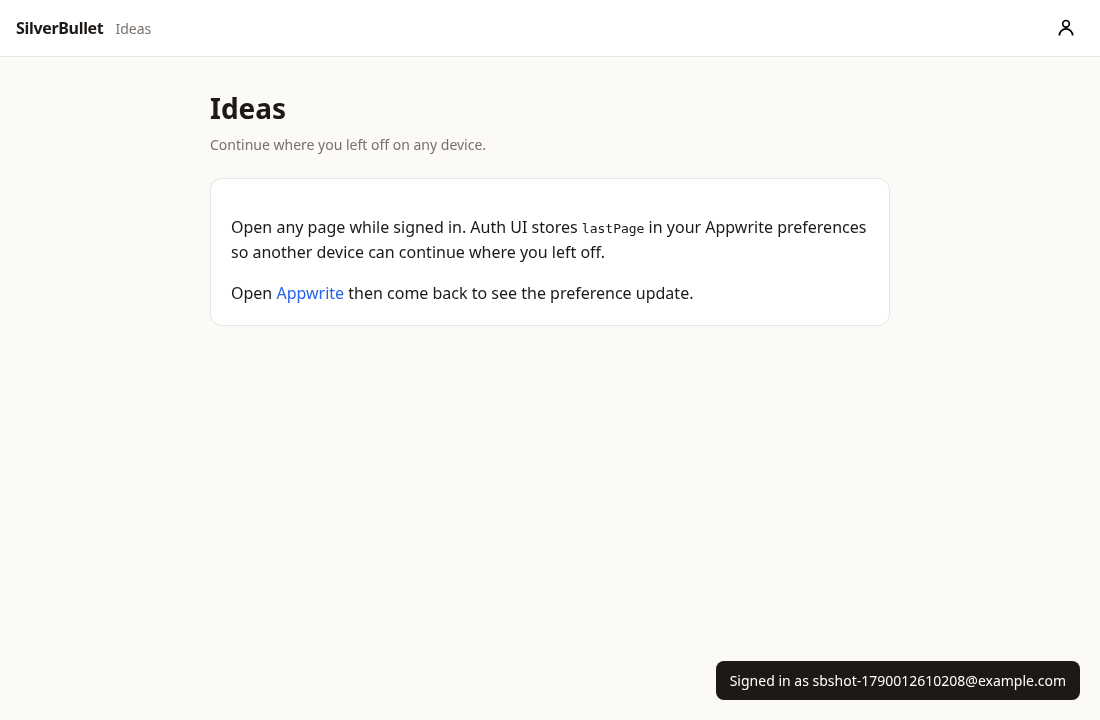
Run SilverBullet
Create a folder for your notes and start the server with Docker:
mkdir space
docker run -p 3000:3000 -v $PWD/space:/data -e SB_USER=admin:password \
  ghcr.io/silverbulletmd/silverbullet:latest
Open http://localhost:3000 and sign in with admin and password. That is SilverBullet's own login for the whole server. The Appwrite account you add next is a layer on top of it, for per-person features. See the SilverBullet install docs for other ways to run it.
Create an Appwrite project
Follow the Appwrite quick start up to the point where you have a project and a Web platform:
- Create a project on Appwrite Cloud or your own instance.
- Add a Web platform with hostname
localhost. Add the hostname you serve SilverBullet from later the same way. - Email/Password under Auth → Settings is on by default.
Note the project ID and API endpoint from the Console.
Load Auth UI from a Space Lua block
Create a page called Appwrite in your space. In SilverBullet, open the command palette with Cmd+/ or Ctrl+/, run Page: New, and name it Appwrite. Paste this into it:
# Appwrite sign in

```space-lua
-- priority: 50
local AuthUI = js.import("https://unpkg.com/@getauthui/core@0.1.45").AuthUI

AuthUI.init({
  endpoint = "https://fra.cloud.appwrite.io/v1",
  project = "YOUR_PROJECT_ID",
  methods = { emailPassword = true },
  branding = { name = "SilverBullet" }
})

local account = AuthUI.getAccount()

-- A button in the top bar: sign in, or open the account screen once signed in
actionButton.define {
  icon = "user",
  description = "Appwrite account",
  run = function()
    if AuthUI.getUser() then AuthUI.open("account") else AuthUI.open() end
  end
}
```
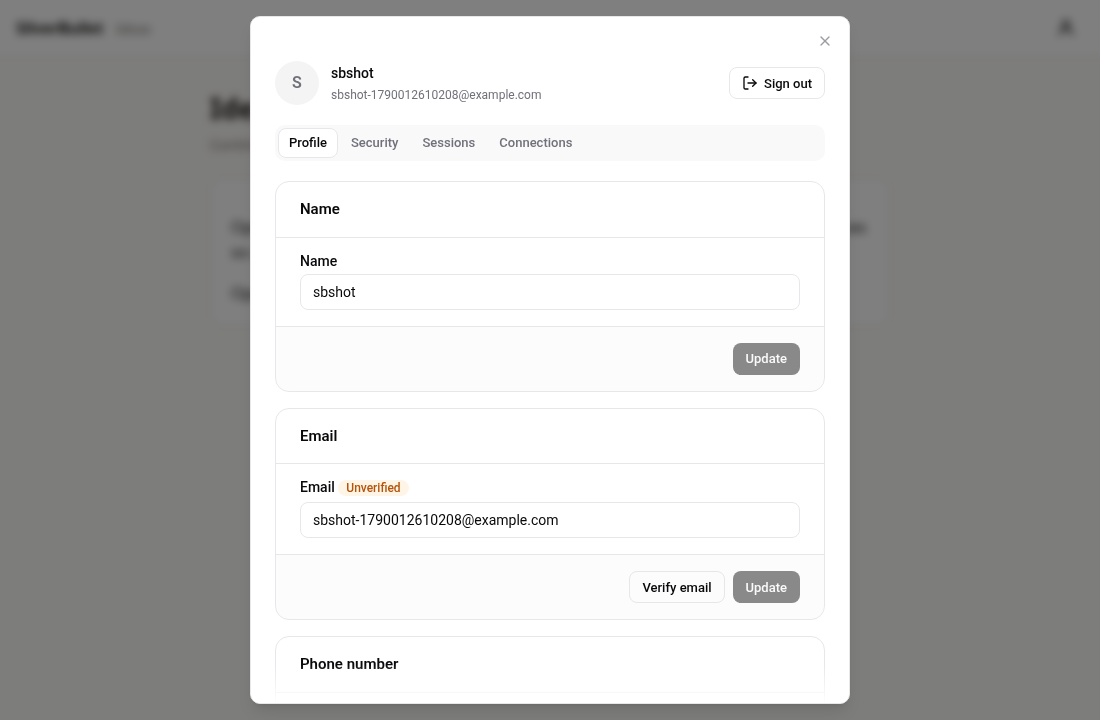
space-lua blocks run on every page load, from any page in the space. js.import() loads the Auth UI module straight from the CDN, and Lua tables are converted to JavaScript objects automatically, so AuthUI.init reads like the JavaScript version. Reload the page with System: Reload (Ctrl+Alt+R) or a browser refresh. A user icon appears in the top bar. Click it and sign up.
Remember the page you are reading
Add this to the same block. SilverBullet fires editor:pageLoaded whenever a page opens; while signed in, store the page name in the user's preferences with account.updatePrefs().
-- Remember the page you are reading
event.listen {
  name = "editor:pageLoaded",
  run = function()
    if AuthUI.getUser() then
      account.updatePrefs({ lastPage = editor.getCurrentPage() })
    end
  end
}
AuthUI.getUser() is nil until the session is known, which also keeps the page a device opens on boot from overwriting a newer value before the sign in resolves.
Open it on sign in
Finally, when a sign in completes, read the preferences back and navigate. Space Lua awaits JavaScript promises for you, so account.getPrefs() returns the object directly.
-- On sign in, continue where you left off on any device
AuthUI.on("signed-in", function(user)
  editor.flashNotification("Signed in as " .. user.email)
  local prefs = account.getPrefs()
  if prefs.lastPage and prefs.lastPage ~= editor.getCurrentPage() then
    editor.navigate(prefs.lastPage)
  end
end)
signed-in fires on every page load that finds a session, not only after the form, so a returning device jumps to the right page without a click.
Try it
- Reload SilverBullet, sign in, and open any page, for example
Ideas. - Open http://localhost:3000 in a private window, sign in to SilverBullet with
admin, then click the user icon and sign in with your Appwrite account. The editor navigates toIdeas. - Open a different page there, go back to the first window, reload, and watch it follow.
Where to go from here
- Store more than a page. Preferences are a JSON object up to 64 KB. Recent pages, a per-person reading list, or the last cursor position all fit.
- Sync SilverBullet's own client settings.
clientStore.get()andclientStore.set()hold per-browser state; mirror the keys you care about the same way. - Put the elements in a page.
<authui-show when="signed-in">written as HTML inside a markdown page renders as is.<script>tags do not, which is why this guide loads Auth UI from Lua. - Load it server-side instead. In single-space mode the
SB_HEAD_HTMLenvironment variable injects raw HTML into<head>. Use the IIFE build there (<script src="https://unpkg.com/@getauthui/core@0.1.45/dist/authui.cdn.js"></script>) sojs.window.AuthUIis available withoutjs.import. The default ESM entry (type="module") only registers custom elements and does not setwindow.AuthUI. It is not in SilverBullet's docs but it works.
This guide follows the happy path. Two devices opening pages at the same moment race for the last write, and the navigation on sign in is unconditional, so a device that intentionally opened another page gets moved once. Both are easy to refine with a timestamp or a confirmation.
Keep your 2048 best score
Add sign in to the classic 2048 game and store the best score in Appwrite user preferences, so it survives a cleared browser and shows up on every device.
Back up OpenHabitTracker to Appwrite
Add Appwrite sign in to the OpenHabitTracker Blazor PWA and keep a private backup of every habit, task and note in Appwrite Storage.