Keep your 2048 best score
Add sign in to the classic 2048 game and store the best score in Appwrite user preferences, so it survives a cleared browser and shows up on every device.
2048 keeps its best score in localStorage, which lives and dies with one browser. In this guide you add Auth UI to it and mirror the best score into the signed-in user's Appwrite preferences. About thirty lines of code, no build step, no server of your own.
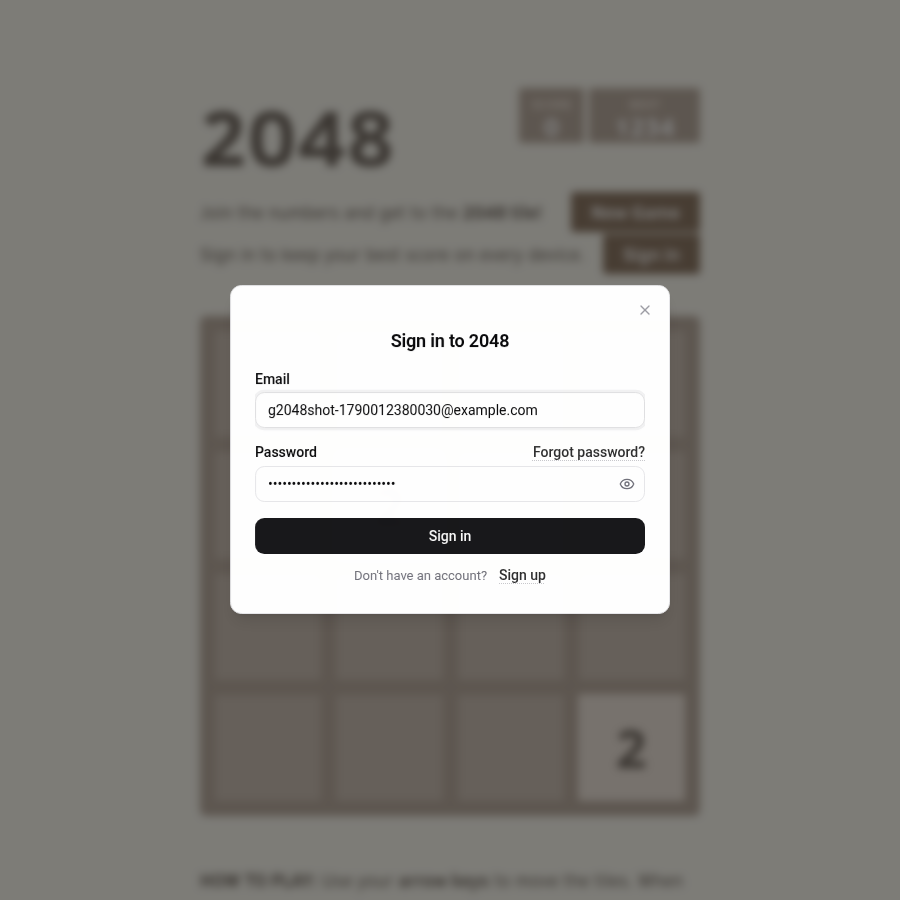
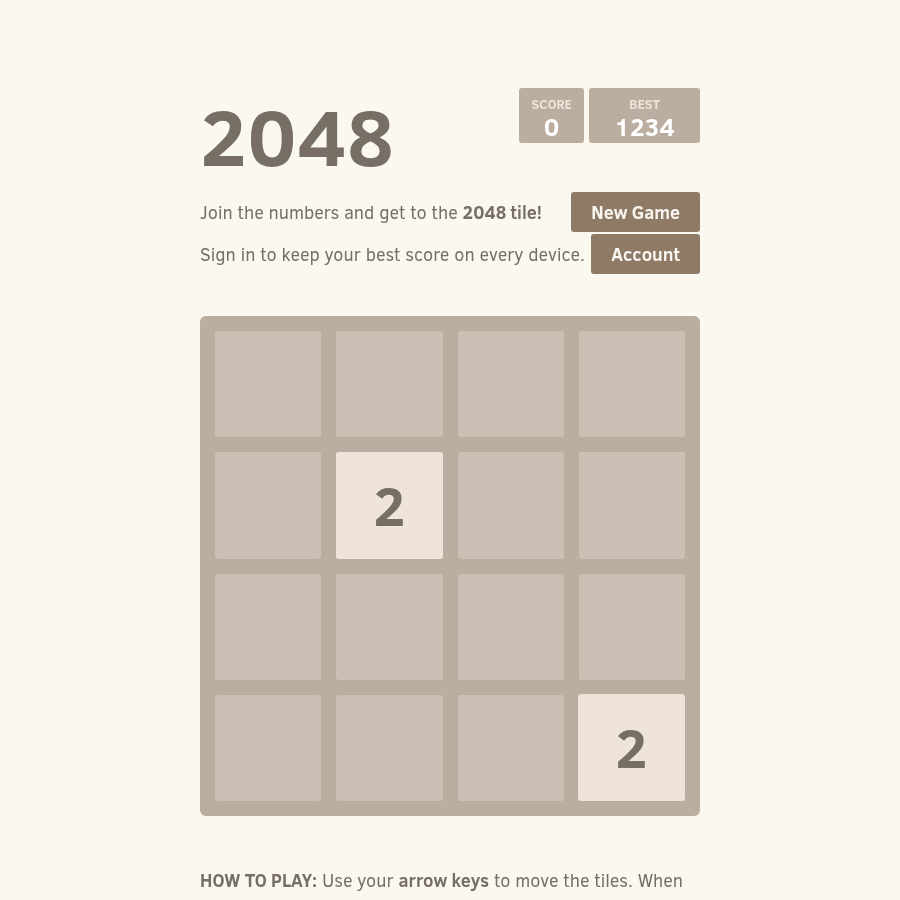
What you end up with: a "Sign in" button under the board, a best score that uploads whenever it improves, and the higher of the two scores winning when you sign in on another device.
Clone 2048
git clone https://github.com/gabrielecirulli/2048.git
cd 2048
Open index.html in a browser. The game is plain HTML and JavaScript, so there is nothing to install.
Create an Appwrite project
Follow the Appwrite quick start up to the point where you have a project and a Web platform:
- Create a project on Appwrite Cloud or your own instance.
- Add a Web platform with hostname
localhostfor development. - Email/Password under Auth → Settings is enabled by default. Leave it on.
Note the project ID and the API endpoint from the Console.
Add the sign-in button
Below the "New Game" row in index.html there is room for one more row. Reuse the game's own restart-button style so it fits in.
Put this in <head> so the buttons stay hidden until Auth UI loads (see <authui-show>):
<link rel="stylesheet" href="https://unpkg.com/@getauthui/core@0.1.45/dist/fouc.css" />Below the "New Game" row:
<div class="above-game">
  <p class="game-intro">Sign in to keep your best score on every device.</p>
  <authui-show when="signed-out"><a class="restart-button sign-in-button">Sign in</a></authui-show>
  <authui-show when="signed-in"><a class="restart-button account-button">Account</a></authui-show>
</div>
<authui-show> renders its children only while the auth state matches, so the row shows "Sign in" or "Account", never both.
Configure Auth UI
Add a module script after the game's own scripts at the bottom of index.html:
<script type="module">
  import { AuthUI } from "https://unpkg.com/@getauthui/core@0.1.45";

  AuthUI.init({
    endpoint: "https://fra.cloud.appwrite.io/v1",
    project: "YOUR_PROJECT_ID",
    methods: { emailPassword: true },
    branding: { name: "2048" },
  });

  document.querySelector(".sign-in-button").addEventListener("click", () => AuthUI.open());
  document.querySelector(".account-button").addEventListener("click", () => AuthUI.open("account"));
</script>
Reload, click "Sign in", and create an account with any email and password. The button turns into "Account".
Upload the best score when it improves
The game writes the best score through LocalStorageManager.prototype.setBestScore, which GameManager calls after every move that beats the record. Wrap it so it also calls account.updatePrefs(). A one second delay avoids one request per move during a good run. Add this inside the same module script:
var account = AuthUI.getAccount();
var timer;

var setBestScore = LocalStorageManager.prototype.setBestScore;
LocalStorageManager.prototype.setBestScore = function (score) {
  setBestScore.call(this, score);
  if (!AuthUI.getUser()) return;
  clearTimeout(timer);
  timer = setTimeout(function () {
    account.updatePrefs({ bestScore: Number(score) });
  }, 1000);
};
AuthUI.getAccount() returns the Appwrite Account service Auth UI signs in with, so the request is already authenticated. Patching the prototype works even though the game creates its LocalStorageManager before this script runs, because methods are looked up at call time.
Restore it on sign in
When a user signs in, compare the score on the account with the one in this browser and keep the higher. signed-in fires on every page load that finds a session, not only after the form, so a returning player always sees their real best.
  AuthUI.on("signed-in", async function () {
    var prefs = await account.getPrefs();
    var remote = Number(prefs.bestScore || 0);
    var local = Number(localStorage.getItem("bestScore") || 0);

    if (remote > local) {
      localStorage.setItem("bestScore", remote);
      document.querySelector(".best-container").textContent = remote;
    } else if (local > remote) {
      await account.updatePrefs({ bestScore: local });
    }
  });
</script>
The game reads bestScore from localStorage on the next move, so writing it there is enough. Updating .best-container shows the number right away instead of after the first move.
Try it
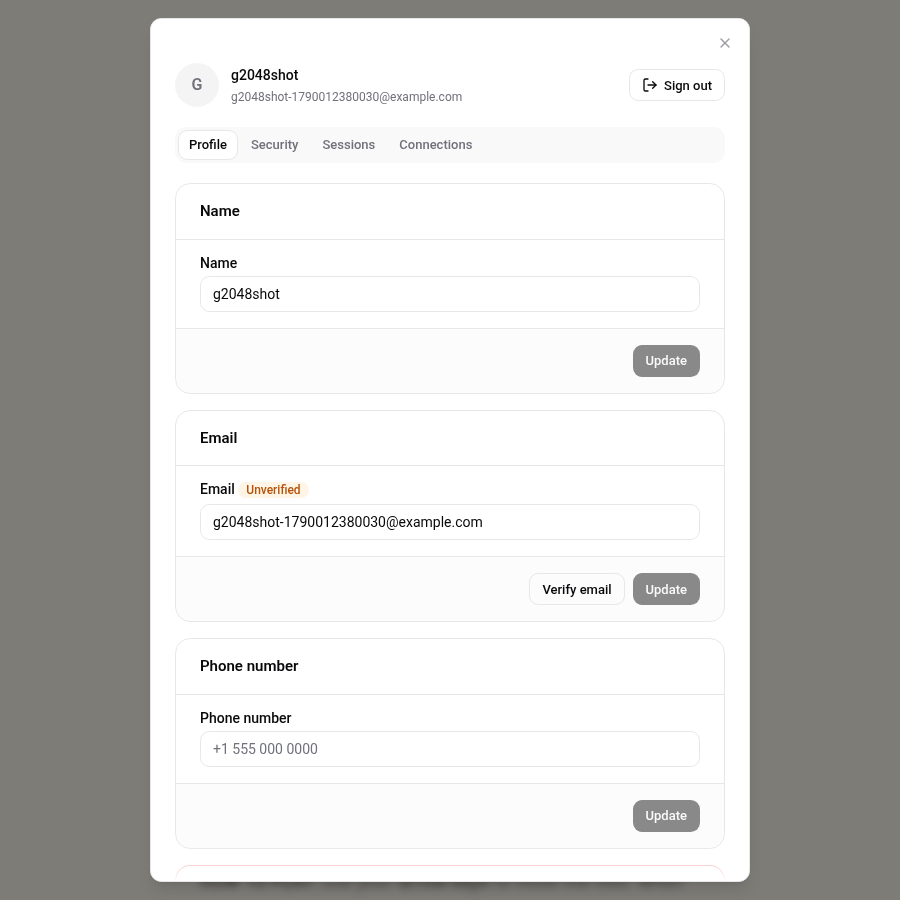
- Play a few moves, then sign up. Your best score is uploaded. In the Console it is visible under Auth → Users → your user → Prefs.
- Open
index.htmlin a private window and sign in. The best score appears before you make a move. - Beat it there, come back, reload. The new record is waiting.
Where to go from here
- Save the board too. The game also stores
gameStatethroughsetGameState()andclearGameState(). Wrap them the same way to resume a game on another device. It is a few hundred bytes of JSON, far under the 64 KB preferences limit. - Add a leaderboard. Preferences are private to each user. For a public leaderboard, write scores to an Appwrite database table with read access for everyone and create access for users.
- Sign in with one tap.
methods: { emailPassword: true, oauth: ["google"] }adds a Google button with no other changes.
This guide follows the happy path. updatePrefs() replaces all preferences on the user, so if you store more than the score, send the whole object each time.
Sync Nullboard across devices
Add sign in to the Nullboard kanban board and keep every board in Appwrite user preferences, so nothing is lost and it follows you to any device.
Continue where you left off in SilverBullet
Add Appwrite sign in to a self-hosted SilverBullet notebook with a Space Lua script, and reopen the page you were reading on any device.