Sync Nullboard across devices
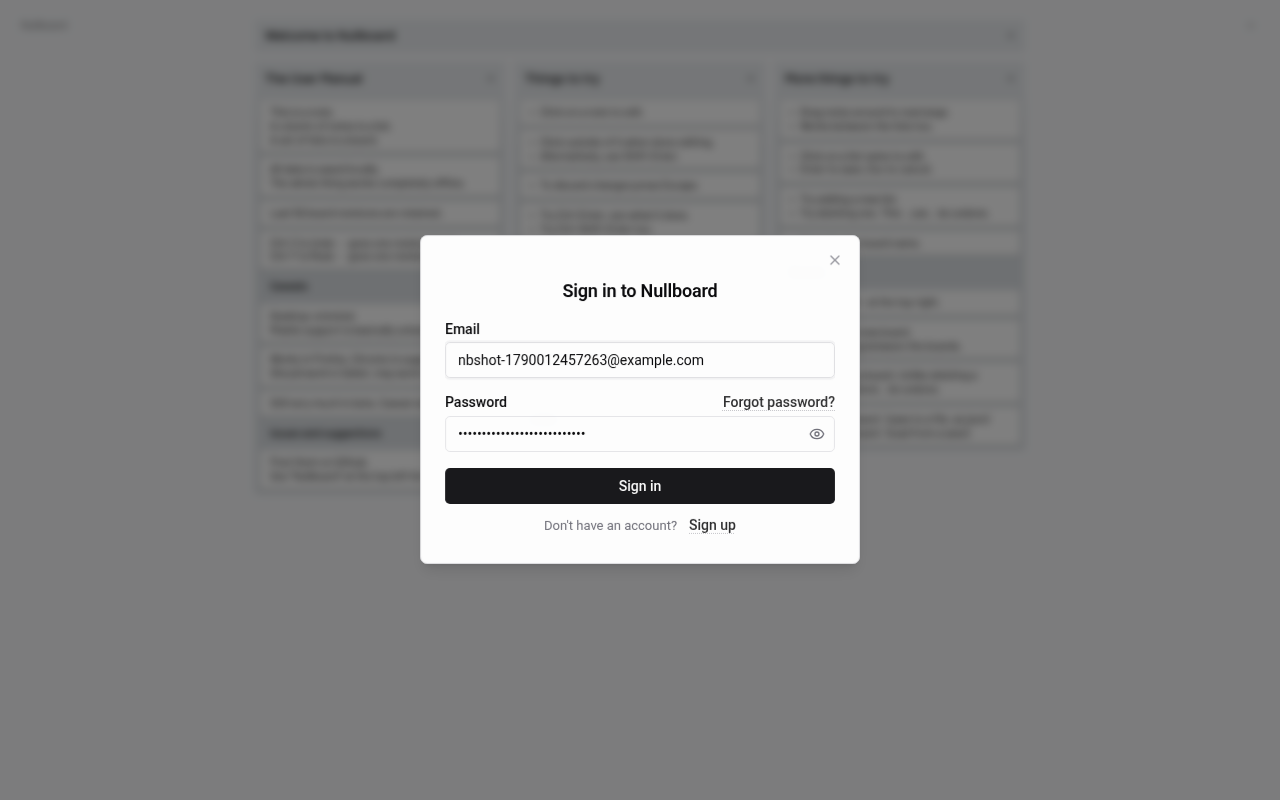
Add sign in to the Nullboard kanban board and keep every board in Appwrite user preferences, so nothing is lost and it follows you to any device.
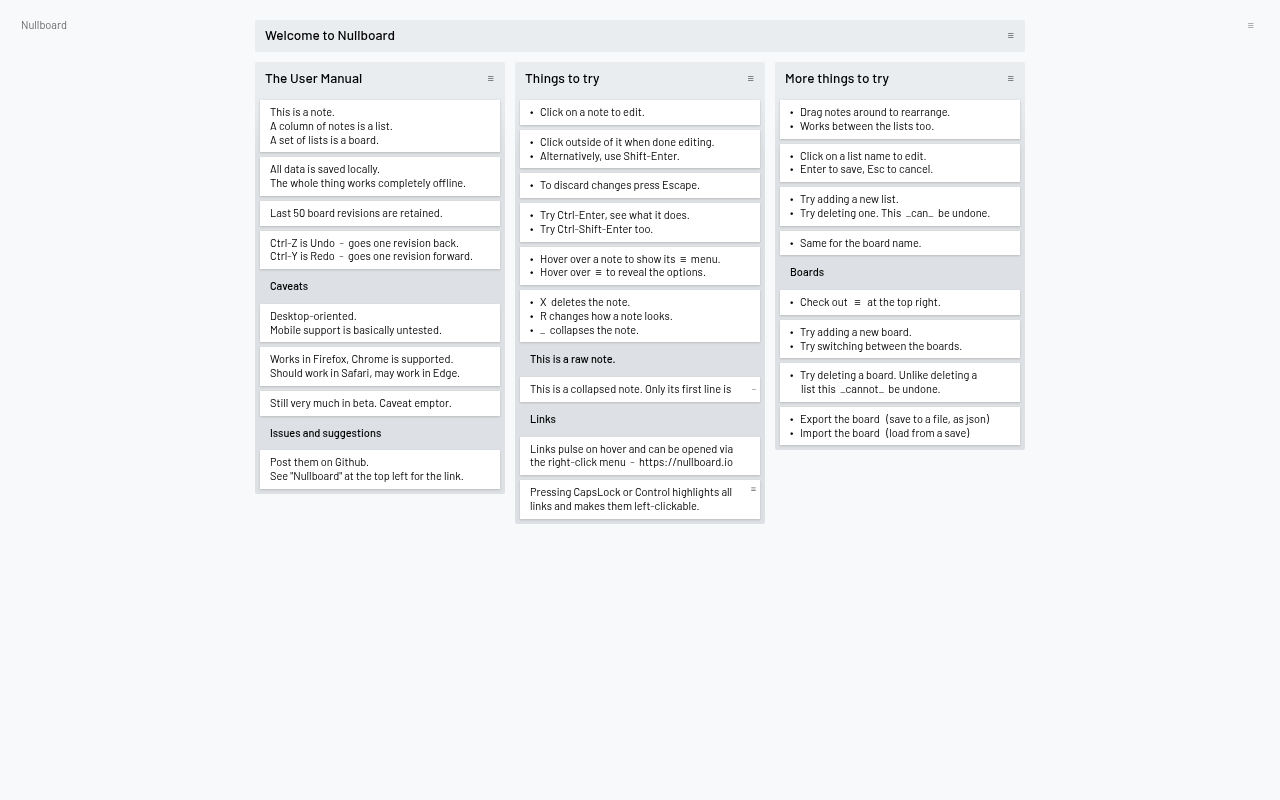
Nullboard is a single-file kanban board that stores everything in the browser's localStorage. That makes it fast and private, and it also means a cleared browser or a second laptop starts from nothing. In this guide you add Auth UI to it and mirror the boards into the signed-in user's Appwrite preferences. About forty lines of code, no build step, no backend of your own.
What you end up with: a "Sign in to sync..." entry in Nullboard's menu, boards that upload after every change, and boards that appear on any device where you sign in.
Clone Nullboard
git clone https://github.com/apankrat/nullboard.git
cd nullboard
Everything lives in nullboard.html. Open it in a browser and you have a working board. Keep that tab around to compare later.
Create an Appwrite project
Follow the Appwrite quick start up to the point where you have a project and a Web platform:
- Create a project on Appwrite Cloud or your own instance.
- Add a Web platform with hostname
localhostfor development. You will add your real hostname the same way when you deploy. - Make sure Email/Password is enabled under Auth → Settings. It is on by default.
Note the project ID and the API endpoint shown in the Console, for example https://fra.cloud.appwrite.io/v1. You need both in the next step.
Add Auth UI to the menu
Nullboard's hamburger menu at the top right is a list of links inside <div class='config ...'>. Add two entries right after "Add new board...":
Put critical CSS in <head> so the menu entries stay hidden until Auth UI loads:
<link rel="stylesheet" href="https://unpkg.com/@getauthui/core@0.1.45/dist/fouc.css" />Then add the menu entries:
<a href="#" class="add-board">Add new board...</a>

<authui-show when="signed-out"><a href="#" class="sign-in">Sign in to sync...</a></authui-show>
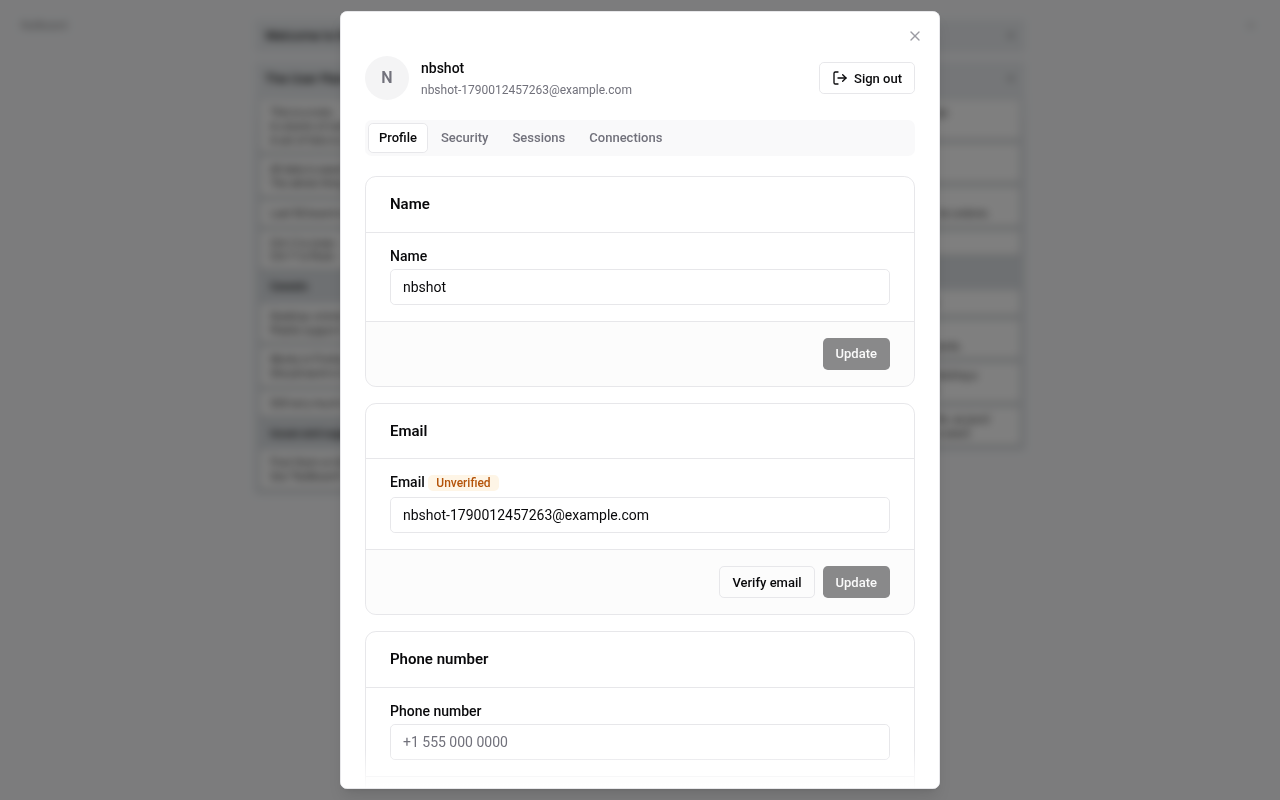
<authui-show when="signed-in"><a href="#" class="account">Account...</a></authui-show>
<authui-show> renders its children only for the matching state, so the menu shows one entry or the other. Plain links keep Nullboard's own menu styling.
Configure and wire up sign in
Nullboard's own code is a classic <script> at the bottom of the file. Add a module script after it, just before </html>, with your endpoint and project ID:
<script type="module">
  import { AuthUI } from "https://unpkg.com/@getauthui/core@0.1.45";

  AuthUI.init({
    endpoint: "https://fra.cloud.appwrite.io/v1",
    project: "YOUR_PROJECT_ID",
    methods: { emailPassword: true },
    branding: { name: "Nullboard" },
  });

  $(".config .sign-in").on("click", () => {
    AuthUI.open();
    return false;
  });
  $(".config .account").on("click", () => {
    AuthUI.open("account");
    return false;
  });
</script>
Module scripts run after the page and Nullboard's script have loaded, so $ and NB are available. AuthUI.open() creates the modal on first use. Reload the page, open the menu, and sign up with any email and password. The menu entry turns into "Account...".
Upload boards after every change
Nullboard keeps boards in NB.storage. Two methods matter: saveBoard() runs on every edit and nukeBoard() on delete. Wrap both so they also upload, and use account.updatePrefs() to store the boards on the user. Add this inside the same module script:
const account = AuthUI.getAccount();
const SYNCED = "nullboard.synced";
let restoring = false;
let timer;

// All boards in Nullboard's own export format, plus a timestamp.
function snapshot() {
  const boards = [];
  NB.storage.getBoardIndex().forEach((meta, id) => boards.push(NB.storage.loadBoard(id, null)));
  return { savedAt: Date.now(), boards };
}

// Upload at most once per second, only while signed in.
function scheduleUpload() {
  if (restoring || !AuthUI.getUser()) return;
  clearTimeout(timer);
  timer = setTimeout(async () => {
    const data = snapshot();
    await account.updatePrefs({ nullboard: data });
    localStorage.setItem(SYNCED, data.savedAt);
  }, 1000);
}

// Every save or delete inside Nullboard now also uploads.
for (const method of ["saveBoard", "nukeBoard"]) {
  const original = NB.storage[method];
  NB.storage[method] = function (...args) {
    const result = original.apply(this, args);
    scheduleUpload();
    return result;
  };
}
AuthUI.getAccount() returns the same Appwrite Account service Auth UI signs in with, so the call is already authenticated. snapshot() uses loadBoard(), which returns the current revision of each board without the undo history, keeping the payload small. Preferences hold up to 64 KB, which is plenty for boards.
Restore boards on sign in
The last piece pulls boards down. When a user signs in, compare the timestamp stored in preferences with the one this device last synced. If another device saved more recently, import those boards and reload. If there is nothing in preferences yet, upload what is here.
	// Replace local boards with the ones from Appwrite, then reload to show them.
	function restore(data)
	{
		restoring = true;
		for (const board of data.boards)
		{
			board.revision--;            // saveBoard() adds one back
			NB.storage.saveBoard(board); // updates the board index too
		}
		if (data.boards.length) NB.storage.setActiveBoard(data.boards[0].id);
		localStorage.setItem(SYNCED, data.savedAt);
		location.reload();
	}

	AuthUI.on('signed-in', async () => {
		const prefs = await account.getPrefs();
		const remote = prefs.nullboard;
		const local = Number(localStorage.getItem(SYNCED) || 0);

		if (remote && remote.savedAt > local) restore(remote);
		else if (!remote) scheduleUpload();
	});
</script>
The revision-- trick is the same one Nullboard's own import uses: saveBoard() increments the revision, so this keeps the numbers matching. signed-in fires on every page load where a session exists, not only after the form, so a returning user gets the latest boards automatically.
Try it
- Open
nullboard.html, sign up, and add a note to the demo board. A second later the boards are in your preferences. You can see them in the Console under Auth → Users → your user → Prefs. - Open the same file in a private window, or on another machine. Sign in. The page reloads with your boards.
- Change something there, go back to the first window and reload. The change is waiting for you.
Where to go from here
- Deploy it. Nullboard is static, so any host works. Add the deployed hostname as a Web platform in Appwrite, then Appwrite Sites is a one-command deploy.
- Add sign-in methods.
methods: { emailPassword: true, magicUrl: true, oauth: ["github"] }gives you passwordless and GitHub sign in with no other changes. See Sign-in methods. - Match the theme. Nullboard toggles a
theme-darkclass on<html>. Passbranding: { theme: "dark" }when it is set, or leaveautoto follow the system.
This guide follows the happy path. Two devices editing the same board at the same moment means the later upload wins, and deleting a board on one device leaves it on devices that already have it. Both are fine for a personal board and easy to refine once you need to.